 ShareBeam
How to Send Large Videos from Phone to Laptop Without Losing Quality
You know this pain. You shoot a gorgeous 4K video on your phone — a birthday, a drone shot, something you plan to edit — then send it to your laptop through WhatsApp. What arrives looks like it was filmed with a potato. Blurry faces, blocky skies, all the detail gone. I've been there more times than I care to admit.
Your phone has the beautiful original file — you just need to move it without squeezing it along the way. I tested cables, cloud, browser-based sharing, and a local-network app, and ranked five options by one question: does your video arrive pixel-for-pixel identical to the original? Because the original file is the original quality, always — the question is which tool actually moves it untouched.

Why videos lose quality (in plain English)
A minute of 4K footage can easily be 400 MB or more. Messaging apps are built for fast sending on slow networks, so they re-compress your video before it goes out. Think of it like photocopying a photo: the copy looks fine at a glance, but detail has been quietly thrown away.
The fix: move the original file without re-encoding it. A cable, a peer-to-peer transfer, or a proper cloud upload copies it byte-for-byte — so your 4K video lands on your laptop exactly as it left your phone.
What to look for when full quality matters
Here's the checklist I used to judge each method:
Zero compression. The tool must move your video as-is — no re-encoding, no "optimization," no preview versions.
No meaningful size limits. If a tool chokes on multi-GB files, it's useless for 4K footage.
Reasonable speed. A 3 GB file on a slow connection can take an hour — the best methods use your local network or a cable instead of round-tripping through the internet.
Privacy. Ideally your footage travels directly between your devices, not onto a company's server where it sits forgotten.
Works across your devices. Android or iPhone, Windows, Mac, or Linux — the best options don't care.
1. ShareBeam — wireless, peer-to-peer, zero compression
Full disclosure: ShareBeam is my own project, so I know its internals best — which is also why I can describe exactly how it differs, technically.
Open ShareBeam on your phone and your laptop, join the same room with a short code or QR scan (the site also has a free QR generator), pick your video, hit send. It travels over an encrypted peer-to-peer connection — directly between your devices, no size limit, nothing to install on either side.
ShareBeam never touches your file: no re-encoding, no "optimized" copy — the bytes that leave your phone are the exact bytes that land on your laptop. Transfer time depends on your local network speed; on decent home Wi-Fi a multi-GB file typically takes a few minutes.
Best for: quickly beaming a big video to your own laptop (or someone else's device) with no cable, no install, and no quality loss.
Honest limitations: both devices need the room link open to connect, and it won't bridge two devices on completely separate mobile-data connections. On strict networks a TURN relay may assist — data stays encrypted, nothing is stored.
2. USB cable — the fastest, most reliable option for multi-GB files
The humble cable is the champion, honestly. Plug your phone into your laptop, drag the video across — a straight file copy, so quality is preserved by definition. For multi-GB 4K footage, a USB 3 cable is usually the fastest option, full stop.
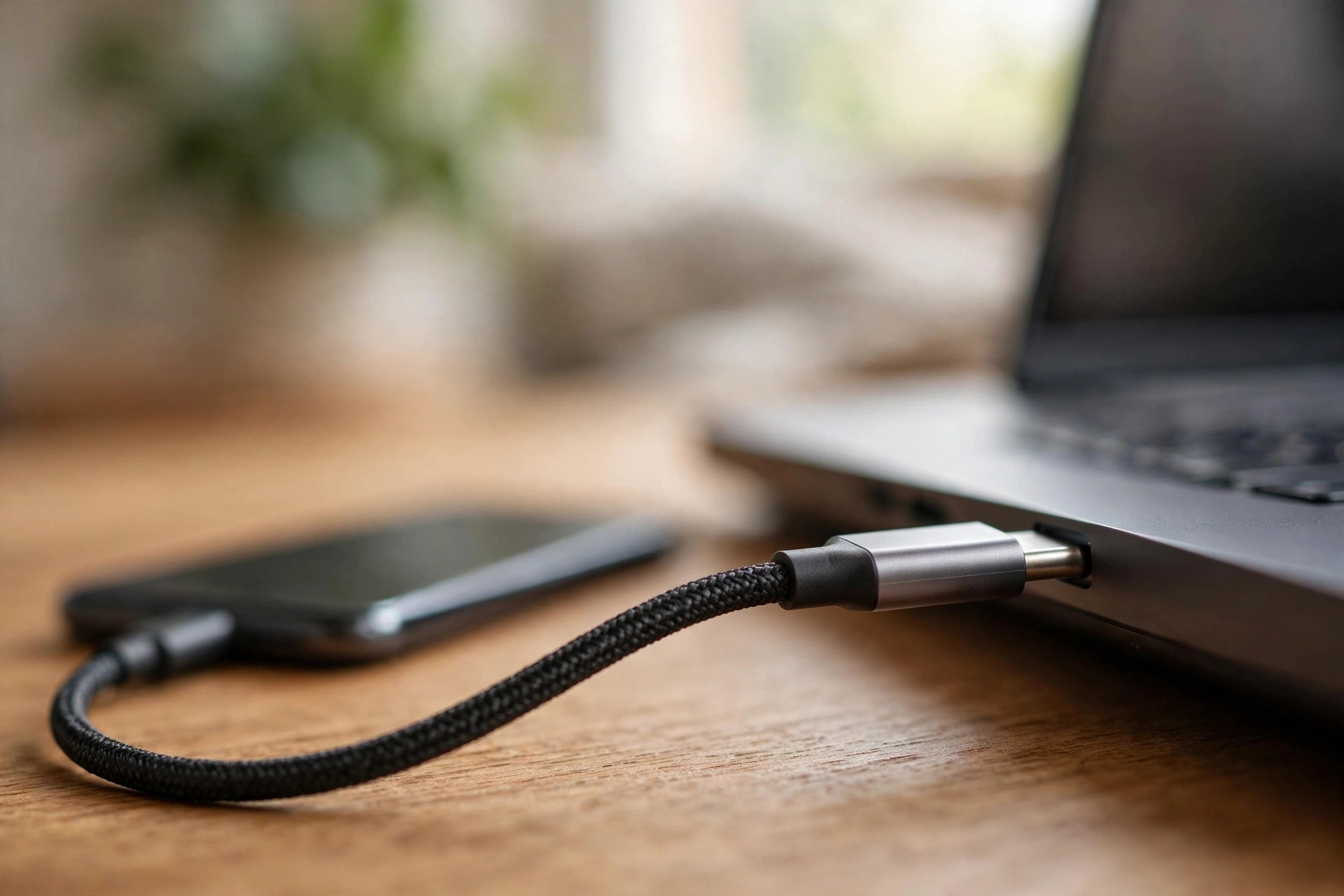
Minor quirks: iPhone users need Apple's software on the laptop side, and Android sometimes needs a two-second tap to switch USB mode from "charging only" to "file transfer." And you need to actually have a cable. But for a huge file where quality is non-negotiable, this is the method I trust most.
Best for: multi-GB 4K footage where quality is non-negotiable and you don't mind a wire.
Honest limitations: it's not wireless; you need the right cable handy, and iPhone users face one extra hoop with Apple's software.
3. LocalSend — the offline app for your own devices
LocalSend is a free, open-source app you install on both phone and laptop (Android, iPhone, Windows, Mac, Linux — all covered). The devices find each other over your Wi-Fi and files move directly — fully offline, no account, no compression. It's the app equivalent of a cable, without the cable.
The honest trade-off: both sides need the app installed. For your own devices that's a one-time setup and then it's seamless; for a one-off share to a friend's device, a browser tool is faster.
Best for: your own devices, offline transfers, and open-source fans.
Keep in mind: needs the app on both sides; not ideal when the other device doesn't have it installed.
4. Cloud options: Google Drive, iCloud, and friends
Uploading to Google Drive or iCloud and downloading on your laptop preserves quality — if you upload the original file. Both store exactly what you upload, so the download gives you back the same bytes. And it works across the internet, so your devices don't need to be near each other.
Fair caveats: a 3 GB upload on a slow connection takes a long time — then downloads again, so it's double the wait. It eats your storage quota (that free tier fills fast with 4K footage). And the previews these services generate are compressed, which confuses people — the preview looks softer, but the downloaded file is fine.
Best for: when your devices are on different networks, or you want a backup copy anyway.
Keep in mind: uploads can be slow, big files eat your quota, and don't judge quality by the compressed in-browser preview — download the actual file.
5. What NOT to use for quality: WhatsApp, Telegram, Messenger
Respect where it's due: these apps are brilliant at instant, free messaging to anyone on the planet — and for a funny clip to friends, they're perfect. But they're not built for quality preservation. WhatsApp, Telegram (in normal send mode), and Messenger all compress video heavily, which is exactly why your 4K footage arrives looking soft.
Workaround: Telegram and WhatsApp let you send video as a document, which skips compression — but size caps make this awkward for large videos, and it's easy to forget to switch modes. Honest framing: great apps for casual sharing, but don't rely on them when quality matters.
Best for: quick casual sharing where convenience beats quality.
Keep in mind: they compress video by default; sending "as document" helps but has size limits and extra steps.
All five methods compared: quality, price, and my scores
Scores reflect my own testing with a real 4K file (below). They're my judgment from hands-on use — not lab measurements — so treat them as a starting point, not gospel.
| Method | Price | Install needed? | Keeps original quality | My score |
|---|---|---|---|---|
| USB cable | Free (cable you own) | No — plug and go | Yes — direct file copy | 9/10 |
| ShareBeam | Free | No — browser only | Yes — zero compression | 8.5/10 |
| LocalSend | Free, open-source | Yes — app on both devices | Yes — original file intact | 8.5/10 |
| Google Drive / iCloud | Free up to quota | No (web) / app optional | Yes, if you upload the original file | 7.5/10 |
| WhatsApp / Telegram / Messenger | Free | App needed | No — compressed by default | 4/10 |
Why the cable wins even though ShareBeam is my project: a direct wired copy is the most foolproof way to move bytes — nothing to configure, nothing that can fail on a network. ShareBeam and LocalSend tie behind it because they achieve the same zero-compression result wirelessly — what you'll reach for when there's no cable on your desk.
How I tested these
I used a 2.4 GB 4K video file (4K 60fps, shot on my phone), an Android phone, an iPhone, a Windows laptop, and a MacBook. For each method I moved the same file and compared it against the original — size, resolution, visual check — over home Wi-Fi and a phone hotspot.
The cable, ShareBeam, LocalSend, and the cloud upload all delivered a byte-identical file, every time. WhatsApp's normal send shrank the file dramatically and softened the footage, as expected. Transparency: I didn't keep formal lab logs or screenshots, so the scores are my informed impressions from hands-on use — not benchmark data. Networks and devices vary, so treat these as a strong signal, not a guarantee.
The bottom line
Cable in your bag? Use it — fastest and most reliable for multi-GB files. No cable? Open ShareBeam on both devices and beam the original over Wi-Fi, or install LocalSend for daily transfers. Cloud works when devices are far apart; just budget time and quota. Keep WhatsApp for the funny clips — your 4K masterpiece deserves better. The same site has a free URL shortener if you ever need to share a link to the finished video.
Frequently asked questions
How do I send large videos from my phone to my laptop?
Open ShareBeam on both devices, join the same room with a short code or QR scan, and send the video — it moves peer-to-peer with zero compression. For multi-GB files, a USB cable is still the fastest and most reliable.
How do I transfer 4K video from phone to PC without losing quality?
Use a method that moves the original file untouched: a USB cable, ShareBeam's peer-to-peer room, LocalSend, or a cloud upload of the original. Avoid WhatsApp, Telegram, or Messenger in normal mode — they compress video to save bandwidth.
Why does WhatsApp reduce video quality?
WhatsApp re-compresses videos before sending so they transfer fast on slow connections. Compression throws away detail to shrink the file, which is why 4K footage arrives soft or blocky. It's a deliberate design choice for messaging speed, not a bug — the fix is any method that doesn't re-encode your video.
Can I send a large video without a USB cable and keep full quality?
Yes. ShareBeam moves the original file over your local network with no compression and nothing to install — open it on both devices, join the same room, done. LocalSend does the same via an installed app, and a cloud upload of the original file also works if you can wait.
Does Google Drive or iCloud keep the original video quality?
Yes — upload the original file and the download is byte-identical. The soft-looking in-browser preview is a compressed stream, but the actual download preserves full quality. Just watch your storage quota and upload times.
What's the best way to transfer video from iPhone to a Windows laptop?
Plug in a cable (you may need Apple's software on the Windows side), use ShareBeam in the browser on both devices, or upload the original to iCloud or Google Drive and download it. All three preserve original quality.